Help Center › Organizing & scaling
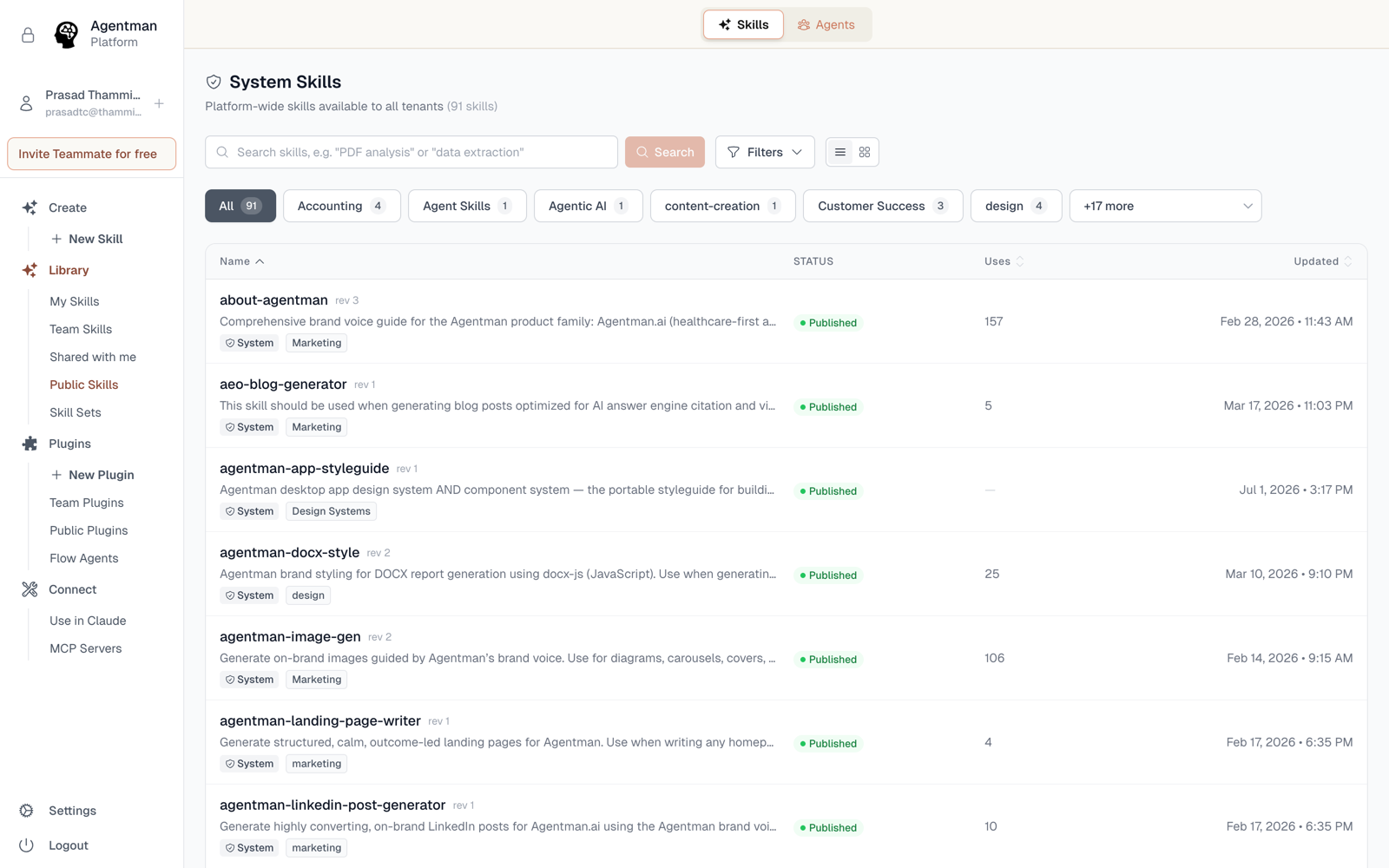
Find skills with keyword and semantic search
Availability: All plans. Search only returns skills you're allowed to use.
A library only scales if people can find things in it. Your skills library searches two ways: by keyword when you know what it's called, and by meaning when you only know what you're trying to do.
Browse and filter
The library page shows your skills as a list (or card grid), with sortable columns for name, status, uses, and last update, plus filters for status, type, and category. Filters persist in the URL — so you can bookmark "all published legal skills" or send that exact view to a teammate.
Keyword search
Type into the search box to match against skill names, descriptions, and tags. Best when you know the skill exists and roughly what it's called.
Semantic search
Ask the way you'd ask a colleague — "how do we screen a deal?", "client onboarding checklist" — and semantic search ranks skills by meaning, not word overlap, with a relevance score on each result. It's powered by vector embeddings that are regenerated every time a skill is published, so results reflect the current version of each skill.
This is also how Claude finds skills once your library is connected — describe the task in chat and Claude retrieves the relevant skill semantically.
Search respects permissions
You can only find what you're allowed to at least use. Search never leaks the existence of a private skill — a teammate's My Skills shelf is as invisible to your searches as it is to your browsing.
Availability
All plans. Semantic search covers published skills; results are always permission-filtered per user.