Help Center › Team & sharing
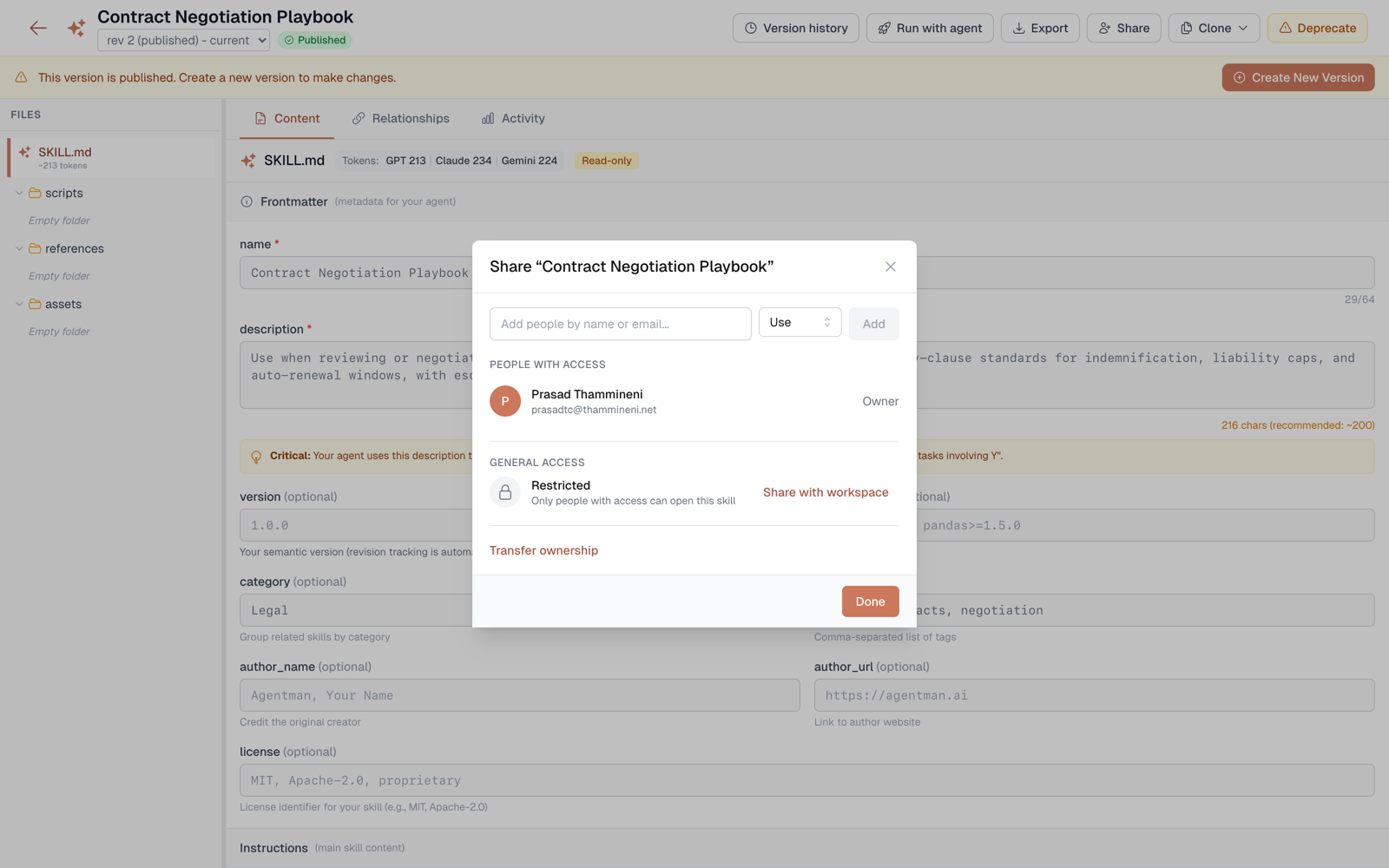
Share a skill with your whole workspace
Availability: All plans. Requires admin access on the skill (or ownership).
You can share a skill with your entire workspace in one click — no need to add teammates one by one. This is how a team standard becomes a team standard.
Share with the workspace
- Open the skill and click Share (editor toolbar, or the ⋯ menu in the library).
- In the General access section of the share dialog, choose Share with workspace.
- Done. Everyone in the workspace can now find and use the skill, and it appears in the Team Skills bucket for the whole team.
To make it private again, open the same General access section and choose Restrict. Individual grants you made by name are unaffected.
Where skills land (the three buckets)
- My Skills — skills you own that aren't workspace-shared.
- Team Skills — skills shared with the whole workspace (yours or anyone's).
- Shared with me — skills granted to you personally by name.
If a skill is both workspace-shared and personally granted to you, it shows under Team Skills.
Workspace sharing and individual grants combine
General access sets the baseline for everyone; individual grants can give specific people more. A common pattern: share with the workspace at use level so everyone can run the playbook, and grant edit to the two people who maintain it.
Availability
All plans. Changing General access requires admin access on the skill or ownership.