Help Center › Team & sharing
Share an Agent Skill with a teammate
Availability: All plans. Managing sharing requires admin access on the skill (or ownership).
You can share any skill you own with a teammate in a few clicks — the same way you'd share a document. You choose exactly how much access each person gets.
Share a skill
- Open the skill and click Share in the editor toolbar — or use the ⋯ menu on the skill's card or row in the library.
- Search for a teammate by name or email.
- Pick an access level (see below) and confirm. They'll see the skill in their Shared with me bucket.
If you type an email that isn't in your workspace yet, you'll get an Invite option (if workspace admins allow it). The skill becomes shareable to them once they accept.
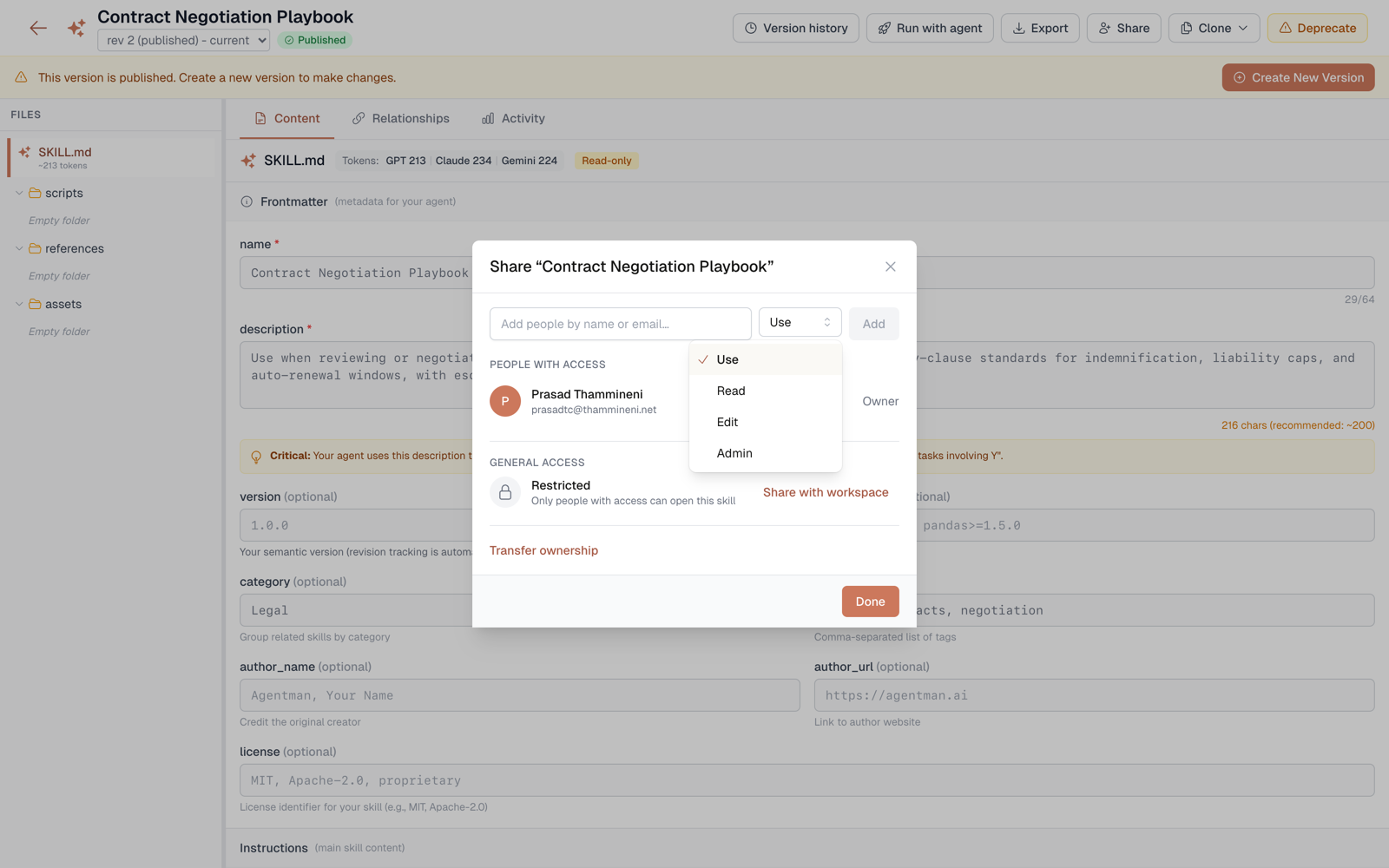
The four access levels
| Capability | Use | Read | Edit | Admin |
|---|---|---|---|---|
| Find it in the library and run it | ✓ | ✓ | ✓ | ✓ |
| See the instructions & files | — | ✓ | ✓ | ✓ |
| Export / clone | — | ✓ | ✓ | ✓ |
| Edit content & publish versions | — | — | ✓ | ✓ |
| Manage sharing, delete | — | — | — | ✓ |
- Use is the strictest level: the person can run the skill without ever seeing what's inside. See use-only sharing.
- The owner holds every capability and appears at the top of the share dialog.
Transfer ownership
When someone changes roles or leaves, the skill's owner (or a workspace admin) can transfer ownership to another teammate from the share dialog — history, sharing, and activity all carry over. See transfer ownership of a skill.
Availability
All plans. Every skill is private by default; only the owner and skill admins can change who has access.