Help Center › Team & sharing
Share a skill without revealing what's inside (use-only)
Availability: All plans.
You can let someone run your skill — apply your playbook, your pricing model, your checklist — without ever seeing the instructions inside it. That's use-only access: the strictest of the four sharing levels, built for expertise you want used but not copied.
Grant use-only access
- Open the skill and click Share.
- Add a teammate by name or email — or use General access to set the whole workspace.
- Pick Use as the access level and confirm.
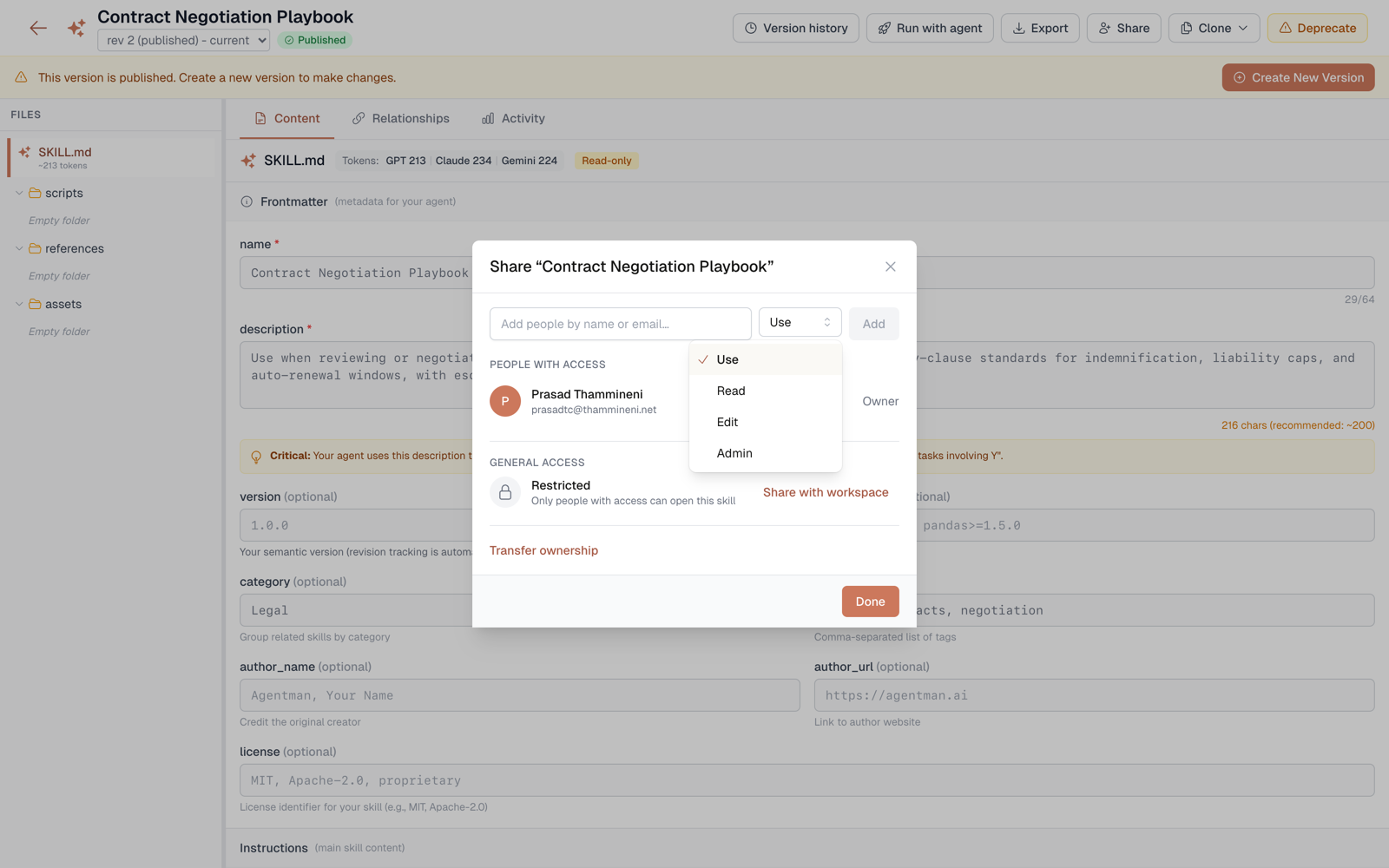
What the recipient experiences
- The skill shows up in their library and works normally: they can find it, run it, and apply it from Claude, ChatGPT, Cursor, or an agent.
- If they open it, they see the name and description with a locked-body notice in place of the instructions.
- Export, clone, and share options are hidden.
- The protection is structural, not cosmetic: the skill body is redacted at the API layer — it's never placed anywhere the recipient (or their AI tool) can read, so it can't be extracted through the agent. Read the full security model at Use-only skills security.
Every use is logged
Each time someone applies a use-only skill, the event is recorded with their identity. As the skill's owner (or admin), you see it in the skill's Activity tab — total applies, distinct users, and a newest-first event trail. The applier's identity is visible only to you and your admins; the applier never gains sight of the body.
Why this matters across firms
Use-only is the "share across firms" primitive: a consultant can let a client's team run their methodology without handing over the methodology. The client gets the outcomes; the IP stays home — with a log of every application.
Availability
All plans. The activity view is visible to the skill's owner and admins.