Help Center › Team & sharing
Transfer ownership of a skill
Availability: All plans. Requires skill ownership or workspace admin.
Every skill has exactly one owner — the person with every capability, shown at the top of the share dialog. When someone changes roles or leaves the team, you can transfer that ownership to a teammate without losing anything.
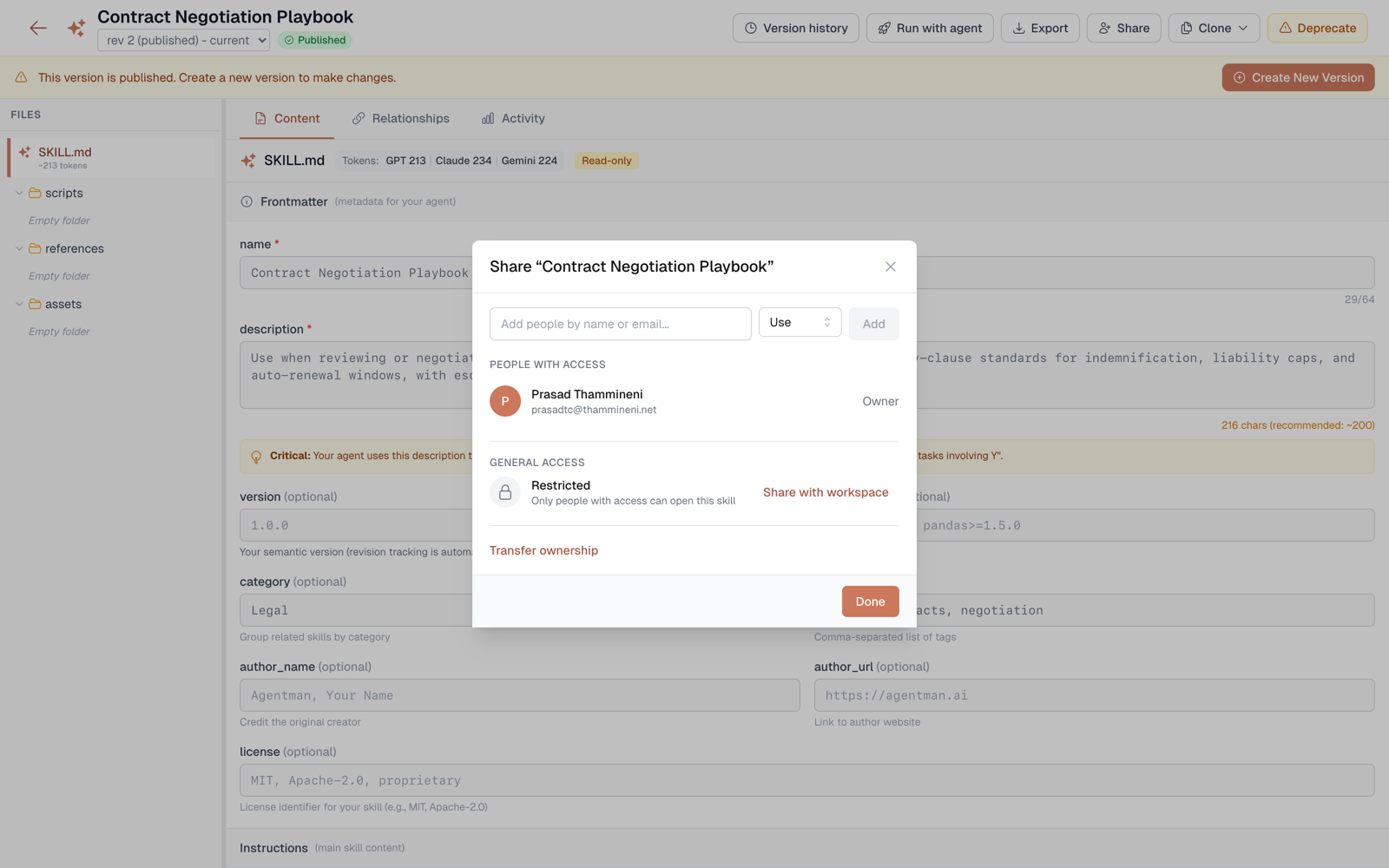
Transfer ownership
- Open the skill and click Share.
- Find the owner row at the top of the dialog and choose Transfer ownership.
- Pick the teammate who should own it and confirm.
Both the current owner and any workspace admin can do this — so a departed teammate's skills are never stranded.
What carries over
Everything except the name on the owner row:
- Version history — every version, author name, and note stays intact.
- Sharing — all existing grants (including use-only) keep working.
- Activity — the usage trail continues uninterrupted; the new owner can see it.
When to transfer
- A teammate who authored key skills is leaving — move their skills to the practice lead before their seat is removed.
- A skill has outgrown its author — the team lead should control sharing and publishing now.
- Ownership should follow responsibility: whoever answers for the process should own the skill that encodes it.
Availability
All plans. Only the skill's owner or a workspace admin can transfer ownership.