Use Claude Skills with your team: connect your library to Claude
You can use every skill in your team library right inside Claude. One MCP connection puts the library in your chat — the skills you built, the skills teammates shared with you, all governed by the same permissions. It works in Claude.ai, Claude Desktop, Claude Code, Cowork and Claude Managed Agents.
Connect from Claude's Connectors Directory
Agentman Skills is listed in Claude's Connectors Directory. This is the quickest way to connect, and the right one if you work in one workspace at a time.
- In Claude, open Settings → Connectors and browse the directory.
- Find Agentman Skills and click Connect.
- Sign in to Agentman and choose the workspace whose library Claude should see.
- Approve the OAuth consent — you're granting scopes like
skills:readandskills:executeto your own account. No shared secrets, and an admin can revoke any member's connection. - Ask Claude to "show my skills" to check the library is connected.
The directory connects the plain URL, https://skills.agentman.ai/mcp, which asks you to pick a workspace when you sign in.
Agentman Skills is listed at Anthropic's community tier: it passed Anthropic's automated review, but Anthropic does not verify community connectors. Agentman wrote the connector and runs its endpoint.
Connect with a custom connector URL
Use a custom connector when you want a specific workspace, or several at once (see below), or when your Claude organization doesn't allow directory connectors.
-
In Agentman, open your skills library and click Use in Claude. Copy the Connector URL — it ends with your workspace's own name:
https://skills.agentman.ai/mcp/your-workspaceThat workspace name is permanent. It's generated once when the workspace is created and never changes, even if the workspace is renamed — so a URL you copy today keeps working.
-
In Claude, open Settings → Connectors → Add custom connector.
-
Paste the connector URL and add it.
-
Approve the OAuth consent when Claude asks.
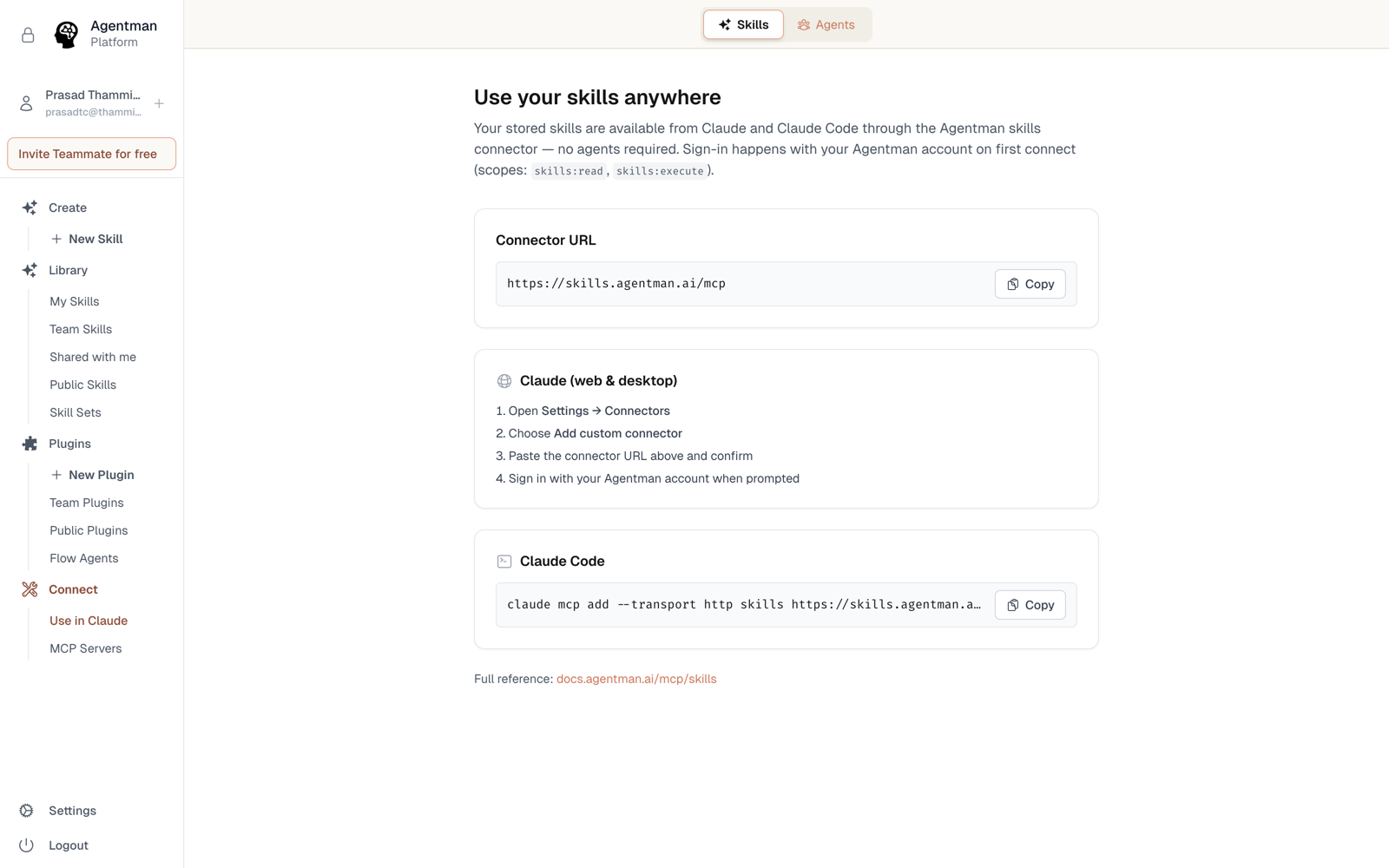
What you can do once connected
- Find and run skills — Claude can list your library, search it semantically ("how do we appeal a prior authorization denial?"), open a skill, and apply it to the task at hand.
- Browse visually — the Skills Explorer widget renders your library inside the chat.
- Author back into the library — describe a new skill and Claude creates it in your library, validation included.
- Use skill sets — bundled collections work from Claude too.
Permissions follow you
Claude sees exactly what your workspace login is allowed to see. If a skill was shared with you use-only, Claude can apply it for you — but neither you nor Claude can read its instructions. Nothing about connecting an AI tool widens your access.
Connect more than one workspace
Many teams run one workspace per client, matter, project, or functional stream — it's the cleanest confidentiality boundary. Because each workspace has its own connector URL, Claude treats each one as a separate connector, and you can add as many as you need:
https://skills.agentman.ai/mcp/acme
https://skills.agentman.ai/mcp/globex
https://skills.agentman.ai/mcp/wayne
Add each as its own custom connector in Claude, copying that workspace's URL from its own Use in Claude panel. Claude then holds a side-by-side connection per workspace — your Client A skills and Client B skills stay in separate libraries, each with its own permissions and logs, and both available in your chat.
Each connector is bound to the workspace named in its URL, so there's no chooser to get wrong and no way for a connector to quietly end up serving the wrong client.
The plain /mcp URL — the one the directory connects — can't do this. It's one connector that asks which workspace to use at sign-in, so adding it twice just gives you the same connection again. If you want several workspaces at once, use the per-workspace URLs.
Availability
All plans. Every team member connects individually with their own OAuth consent.