Set up your queues
Sample practice and sample patients. Captions are on by default.
Go to Settings › Inbox queues and click Start setup. The guide has four steps.
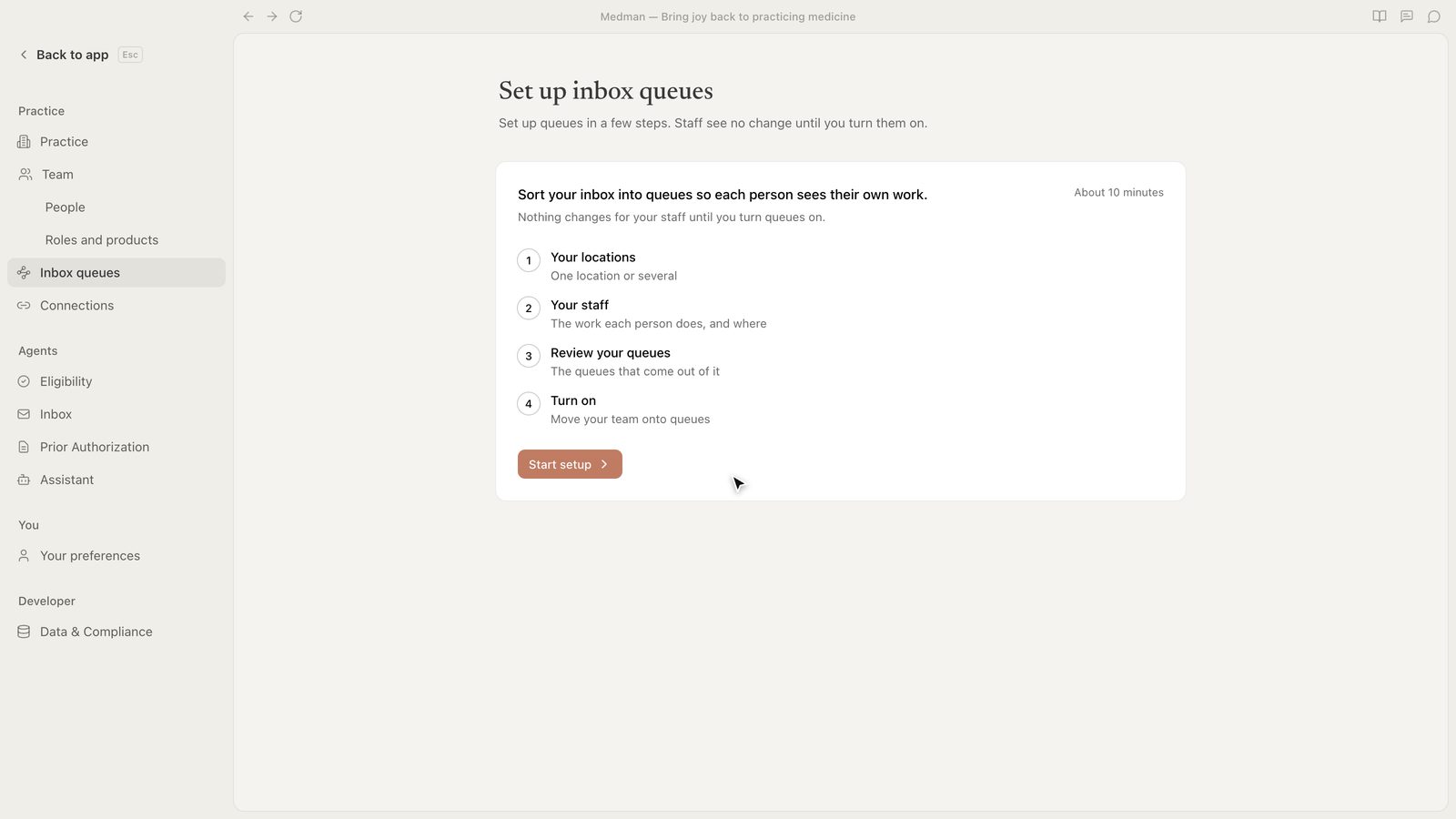
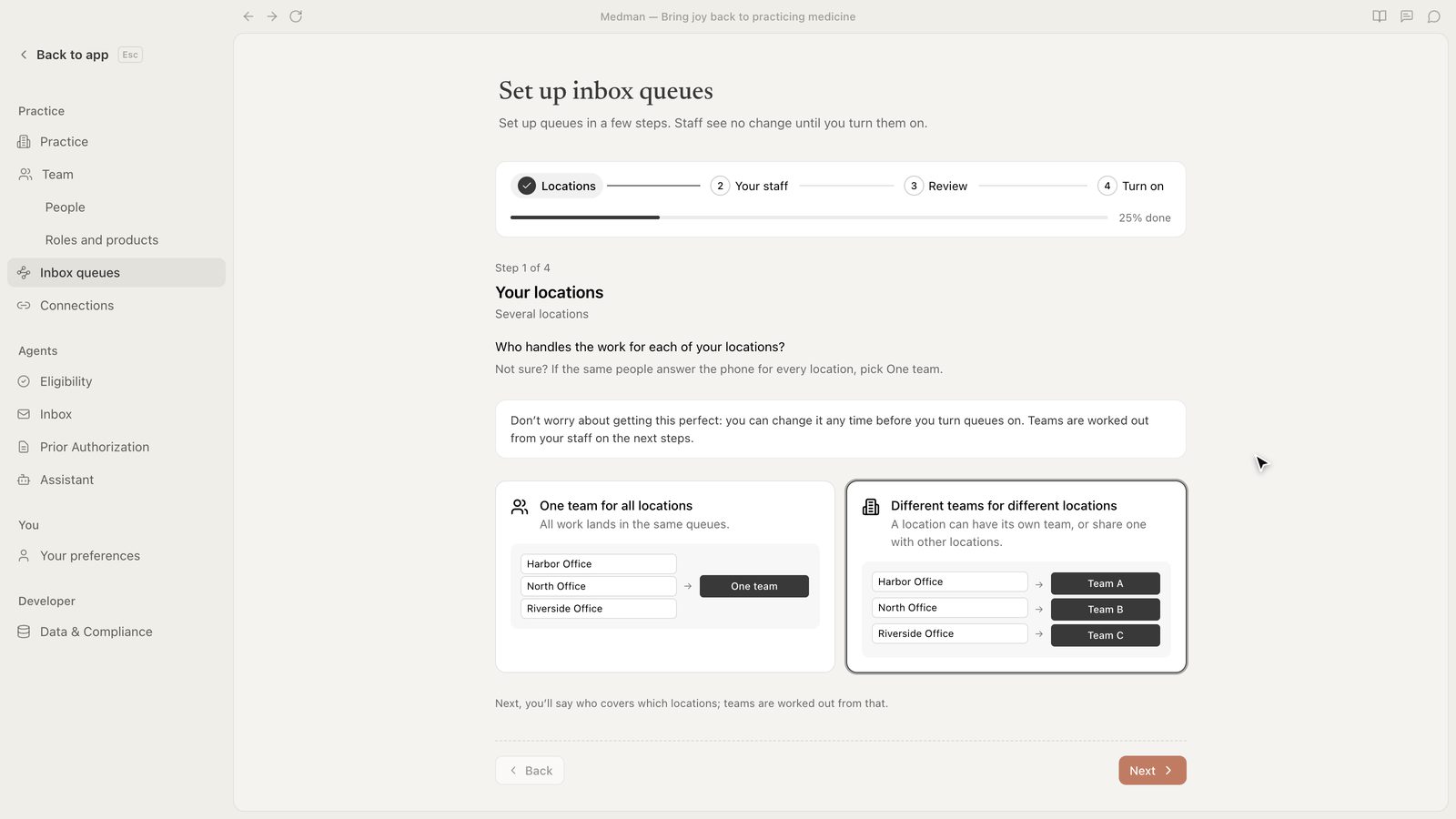
1. Your locations
Pick One team for all locations if the same people answer the phone for every location. Pick Different teams for different locations if each office has its own people.
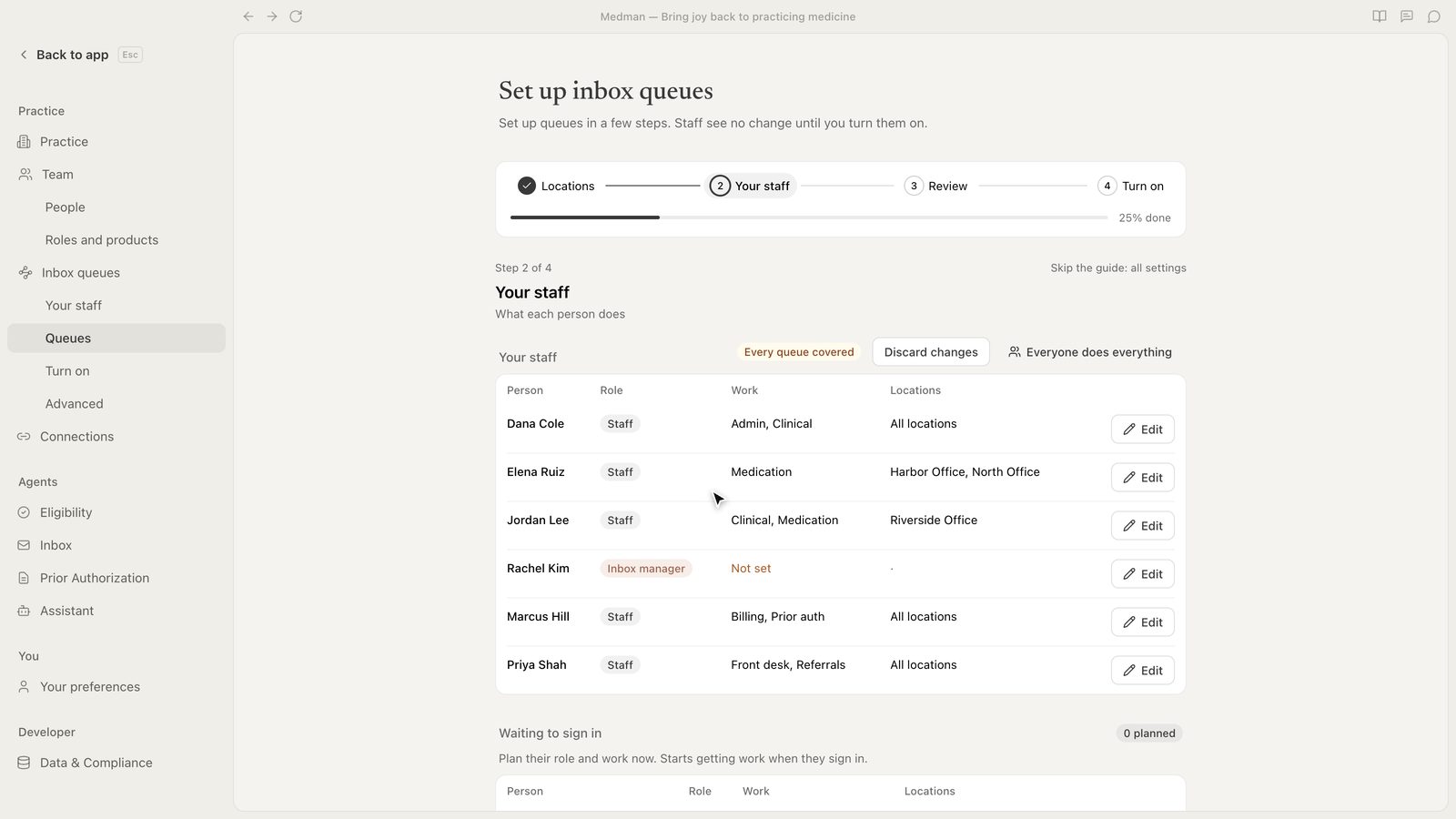
2. Your staff
Click Use suggested queues: Medman makes a queue for each kind of work. Then say what each person does: click Edit, tick their work, and tick the locations they cover.
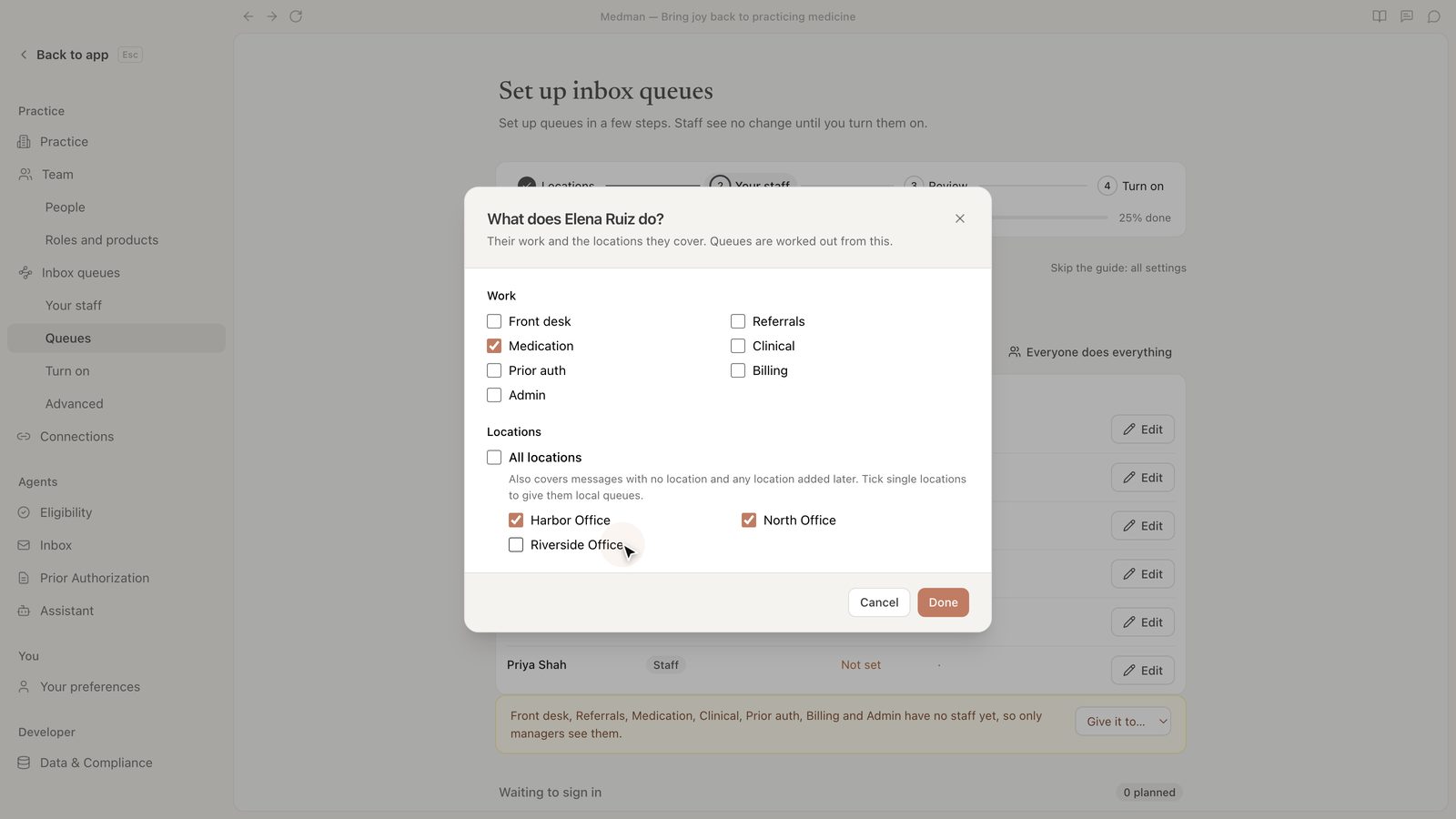
A yellow note lists work nobody has yet. Give it to… hands all of it to one person; Everyone does everything starts everyone on all work. When the note says Every queue covered, click Next.
3. Review your queues
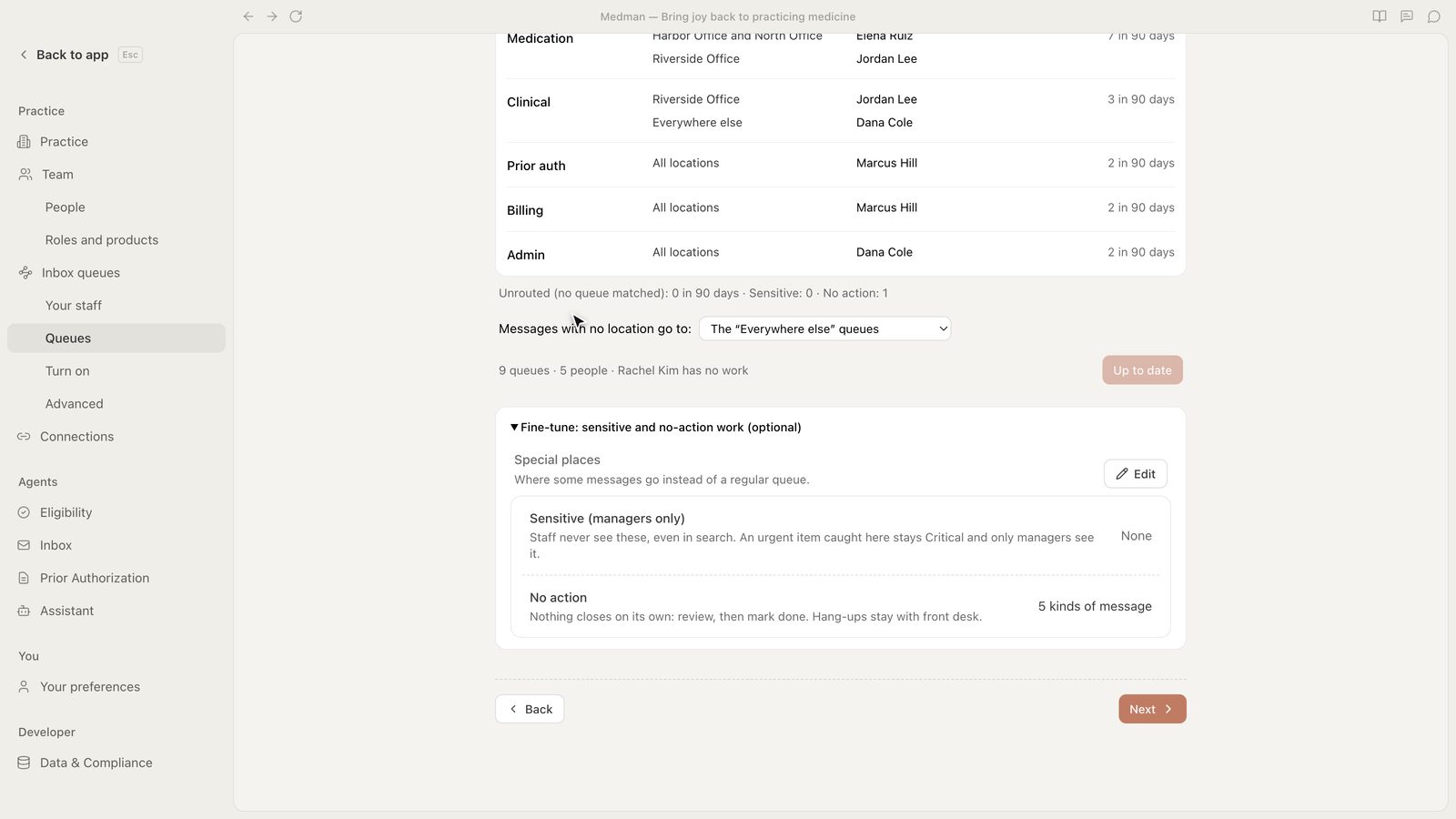
Each kind of work shows its queues by location and who works each one. Choose where messages with no location go. Fine-tune sets what is managers-only and what needs no action.
4. Build
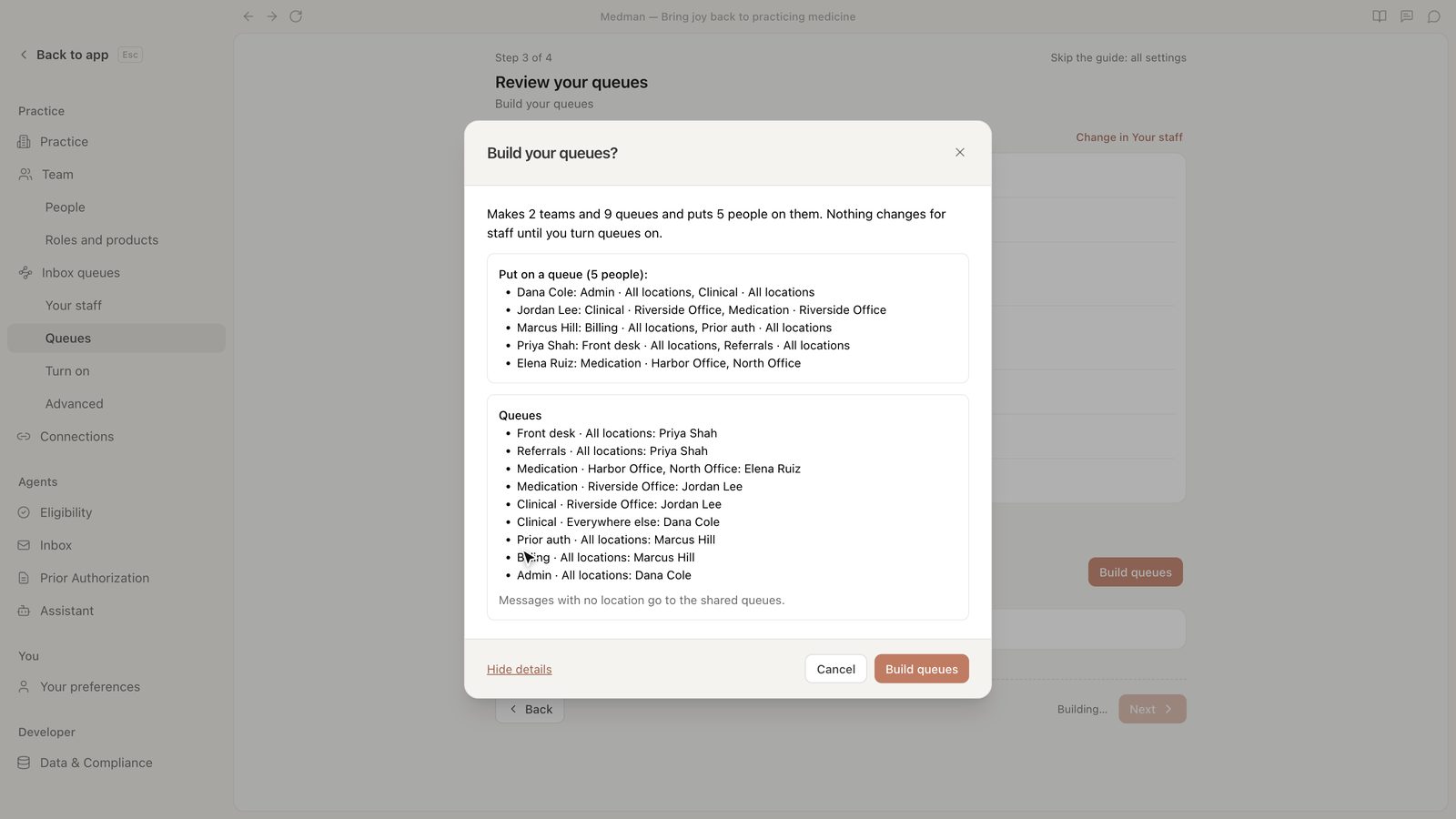
Click Build queues. The confirmation lists exactly who goes on which queue; Show details lists each queue. Click Build queues again.
Next: Turn queues on.